In 2026, ChatGPT started showing ads. That means your online store can now appear right inside the conversations where people ask “what should I buy?” — but only if you can prove those ads actually lead to sales. WooCommerce OpenAI Ads conversion tracking is the system that connects a ChatGPT ad click to the order it created. Without it, you’re paying for ads and guessing whether they work.
This guide explains, in plain terms, how OpenAI’s tracking works, what you actually need, and the three ways to set it up on a WooCommerce store — including one that needs no code at all.
First, what is a “conversion” and a “pixel”?
A conversion is any action you care about. Usually it’s a completed order, but it can also be a newsletter signup or a contact form. Conversion tracking just means telling the ad platform: “this action happened, and it came from your ad.”
A pixel is a small piece of code that sits on your website. When a shopper does something important — like finishing a purchase — the pixel quietly sends a message to the ad platform that says “that just happened here.” The name is a leftover from the early web; today it’s simply a short script. OpenAI’s version is called the Measurement Pixel.
OpenAI measures conversions in two places
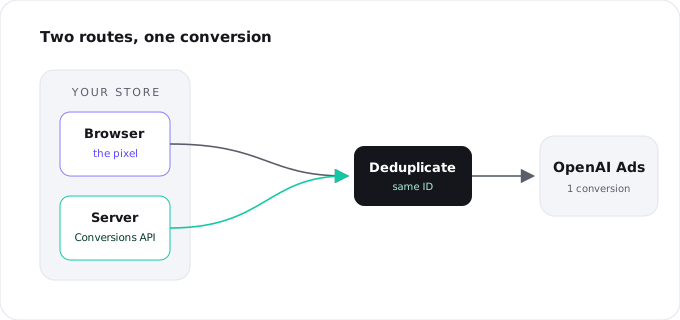
OpenAI can receive that “it happened” message through two different routes. You can use one or both, and the strongest setups use both.
The first is the browser route — the pixel. Code runs in the shopper’s browser and reports the event as it happens. It’s quick and detailed, but it’s fragile: ad blockers, privacy settings, and shoppers who decline cookies can all stop it from sending.
The second is the server route — the Conversions API. Here your website’s own server sends the same event straight to OpenAI, behind the scenes. (“API” is just two systems talking to each other.) This route doesn’t depend on the shopper’s browser, so it’s much harder to block and far more reliable. It can even report sales that happen later, like a delayed payment or a phone order.
A simple way to picture it: the pixel is a note the shopper’s browser tries to hand over on the way out the door, while the server route is a confirmation your store sends from the back office. Two messengers, the same message.
The events worth tracking on a WooCommerce store
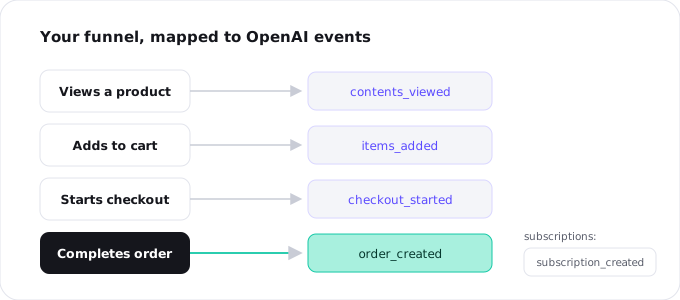
OpenAI understands a fixed list of named moments, called events. You don’t need them all — pick the ones that match your store:
contents_viewed— someone looks at a productitems_added— someone adds to cartcheckout_started— someone begins checkoutorder_created— someone completes a purchase (the one that matters most)subscription_created/trial_started— for stores using WooCommerce Subscriptionslead_created— a form is submitted (useful for service or B2B stores)registration_completed— a new customer account is created
One detail trips people up: prices are sent as whole numbers in the smallest currency unit. So $25.99 is sent as 2599, not 25.99, and you always include the currency. If you’re writing this by hand, that’s an easy place to introduce a bug. A plugin built for WooCommerce does this conversion for you.
Why the browser pixel alone undercounts your sales
If you install only the browser pixel, the number you see will be lower than reality. Three things drain it.
Ad blockers and browser privacy settings stop the pixel from loading or sending. Shoppers who decline marketing cookies never trigger it. And ChatGPT adds a new wrinkle people are calling the conversation gap: shoppers often click an ad, leave to think it over, compare a few options, and buy later. Early advertisers report that most conversions happen after that first click — too late for the browser pixel to catch reliably.
The server route fixes this. Your store already knows when an order is paid, no matter what the browser did, so it can report the sale on its own. Run both routes and your tracking goes from “a rough sample” to “an accurate count.”
Won’t sending it twice count the sale twice?
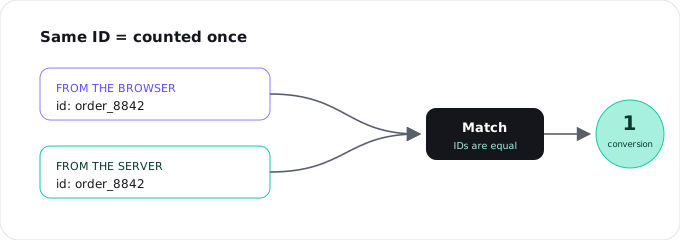
Fair worry — and no, not if it’s set up right. When you send the same sale from both the browser and the server, you give both messages the same ID (think of it as the order number). OpenAI sees the matching ID and counts the sale once. This is called deduplication, which is a long word for “don’t count the same thing twice.” If the IDs get out of sync you’ll either double-count or lose that safety net — one more reason to let a plugin manage both sides for you.
Three ways to set this up on WooCommerce
1. Paste the code yourself
You can drop OpenAI’s snippet into your theme and add the event calls by hand. It works, but you’re responsible for everything: firing the order event on the right page, converting the price correctly, waiting for cookie consent, and building the server route too. The most common mistake is the event firing before the code has finished loading, so the sale silently disappears. This route suits a confident developer with time to maintain it.
2. Google Tag Manager
If your team already uses Google Tag Manager, it’s a familiar place to put the pixel. But you still have to build the “don’t double-count” logic, the consent rules, and the server route yourself, and feed in WooCommerce order data correctly. Powerful, but not hands-off.
3. A WooCommerce plugin (no code)
A plugin made for WooCommerce maps the events for you, sends both the browser and server messages with matching IDs, and waits for consent automatically. You paste a Pixel ID and an API key, and orders, subscriptions, and forms start reporting on their own. This is what Measurement Pixel for OpenAI Ads does, and it’s the route most store owners — and most developers who’d rather not babysit tracking code — will want.
Ready to set it up? The WooCommerce step-by-step OpenAI pixel setup guide walks through it with screenshots.
A note on getting credit for the right click
For OpenAI to credit a sale to the ad click that earned it, it helps to send a few extra clues — like a scrambled version of the customer’s email. This is called advanced matching. “Scrambled” is the important word: the email is turned into an unreadable string (this is called hashing) before it ever leaves your server, so you improve accuracy without handing over personal data in the clear. It’s optional, and you’d switch it off until a visitor has given consent.
Consent and GDPR, briefly
OpenAI Ads started in the US, and the EU isn’t covered yet, partly because of stricter privacy rules. That doesn’t mean you can ignore consent. If you have visitors in regulated regions, tracking should wait until they agree to marketing cookies. The tidy way to handle this in WordPress is the WordPress Consent API: when your cookie banner supports it, a good plugin holds both the pixel and the server messages until the visitor opts in.
More on this in the OpenAI Ads, consents & GDPR in WordPress.
Frequently asked questions
Yes. A WooCommerce plugin maps the standard events (including order_created), sends both the browser pixel and the server-side Conversions API with matching IDs, and handles consent — so you only paste a Pixel ID and an API key.
You can run either alone, but together they catch the most sales. The pixel is detailed but easily blocked; the server route is more reliable and recovers what blockers, privacy settings, and the conversation gap would otherwise lose. Sent with a shared ID, they’re counted once.
No, as long as both use the same ID. OpenAI matches on that ID and counts the sale once.
It started in the US and has begun expanding to a few markets. The EU isn’t covered yet, which OpenAI puts down to stricter privacy rules. You can still get your tracking and consent ready now.
As a whole number in the smallest currency unit — $25.99 becomes 2599 — and always include the currency. A plugin converts WooCommerce order totals for you; hand-written code is where rounding bugs show up.